


E-mail setup MS OUTLOOK
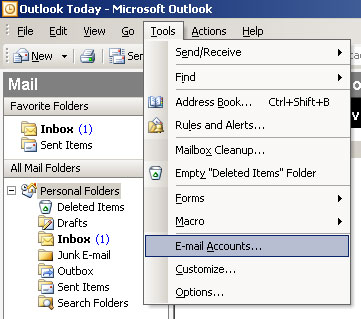
Start -> Programs -> Microsoft Office -> Microsoft Office Outlook
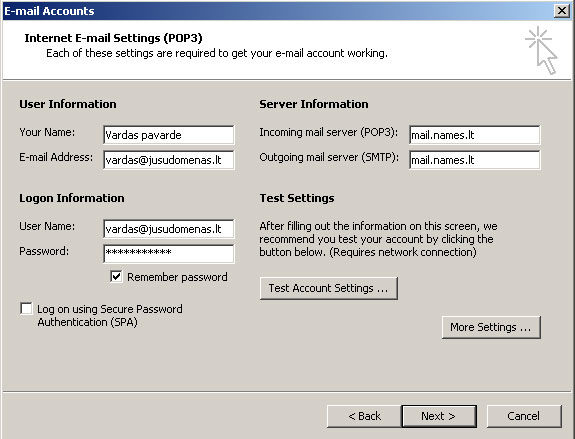
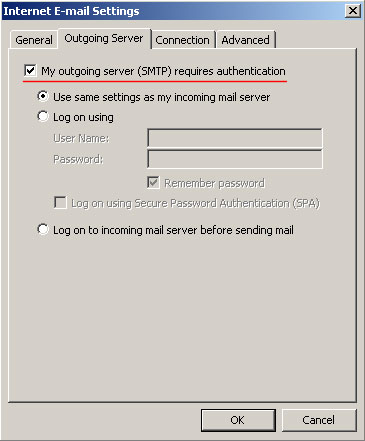
User Information "Your Name" - enter user's name and surname or company name, which will identify messages sent by you. "E-mail Address" - enter your e-mail address, for example: name@yourdomain.lt. Server Information Incoming mail server (POP3) - enter the incoming e-mail server name mail.names.lt Outgoing mail server (SMTP) - enter the outgoing e-mail server mail.names.lt Login Information "User Name" - type your full e-mail mailbox user name (name@yourdomain.lt) "Password" - type your e-mail password and check the box "Remember password". Then click the button "More settings".
|
 |