Please, note that this website uses cookies. If you agree, press “I agree” and continue viewing. For more information about cookies and how to disable them, press here.
AgreeClose
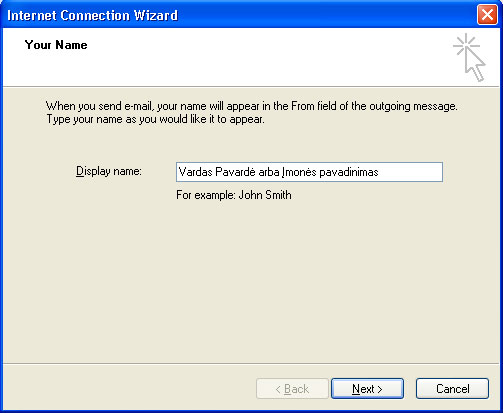
Enter user's name and surname or company name into the field "Display name"
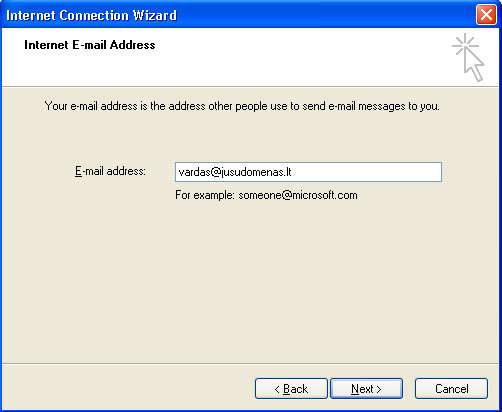
Next type full address of your e-mail mailbox in the field "E-mail address" Click the "Next" button.
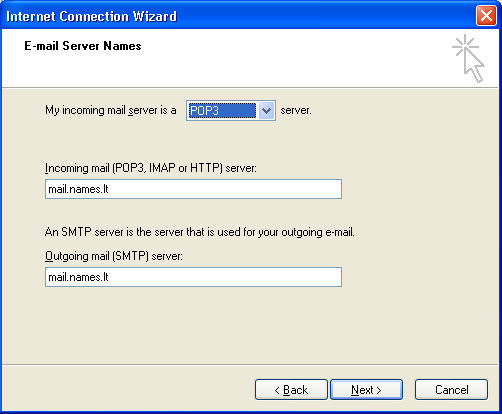
Type in the field "Incoming mail server" the incoming e-mail server mail.names.lt Type in the field "Outgoing mail server" the outgoing e-mail server mail.names.lt Click "Next" button.
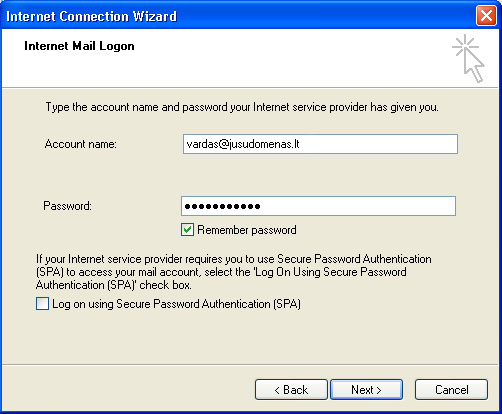
Type in the field "Account"your full e-mail mailbox address. In the field "Password" type your e-mail mailbox password and check the box "Remember password". Then click "Next" button.
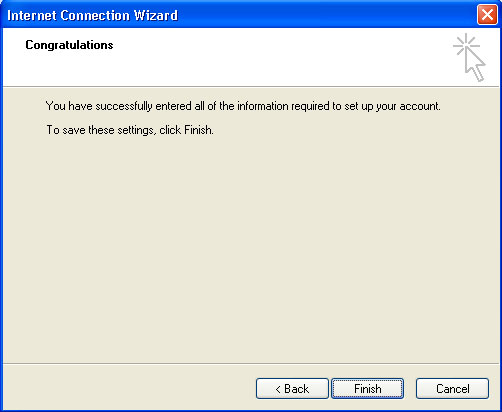
You have configured your e-mail application, however there are some additional changes to do. Click "Next" and "Finish"
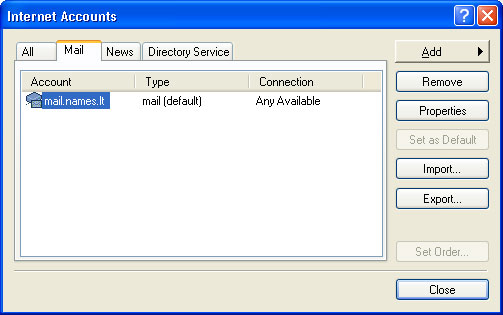
In the opened window click the created e-mail mailbox or select it and click "Properties"
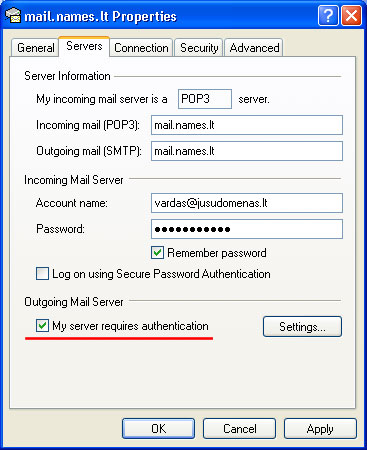
Click the "Servers" tab.
In the opened window you can check, whether your "Incoming" and "Outgoing" e-mail server names are typed correctly. ATTENTION: the "Account name" has to match your full e-mail mailbox name. It is necessary to check the box "My server requires authentication".
Click "OK" and then "Close" in the next window.
Your e-mail mailbox is configured. Good-luck using it.
The project has been updated, please wait while you are moving